
How to Add Custom CSS to Aurora Without Editing Theme Files
 By Daniel Ekay
•
Sep 2, 2026
•
By Daniel Ekay
•
Sep 2, 2026
•
Editing a theme’s CSS files directly means your changes get wiped out every time the theme updates. Aurora gives you two clean alternatives. Both work with updates and neither requires touching theme files.
Option 1: Additional CSS in the Customizer
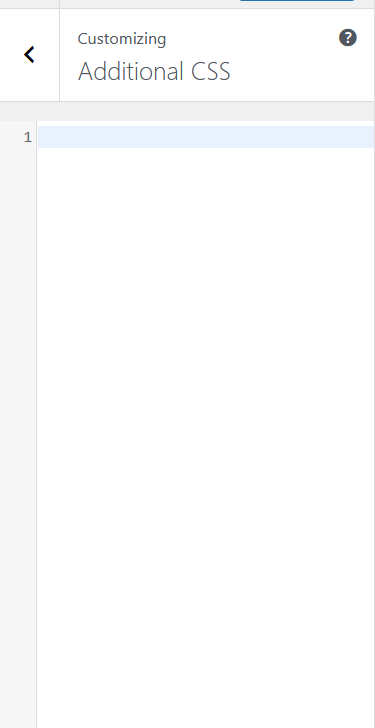
The Customizer includes an Additional CSS panel at the bottom of the left sidebar. CSS entered here is stored in the database and applied on top of Aurora’s styles. It survives theme updates and previews live as you type.
- Go to Appearance → Customize.
- Scroll to the bottom of the left panel and click Additional CSS.
- Enter your CSS rules.
- Click Publish.
This is the right place for small tweaks: adjusting a font size, changing a margin, overriding a color on a specific element, or restyling a homepage section title.
Aurora uses CSS custom properties extensively. Before writing an override, check whether Aurora’s CSS variables already expose what you want to change. Updating a variable is cleaner than targeting a selector.
Option 2: A Child Theme
For larger amounts of CSS, or CSS you want to keep organised in a file, a child theme is the better approach. Aurora’s official child theme includes a style.css file that loads after the parent theme’s styles. Everything you add there overrides Aurora without modifying its files.

See Using a Child Theme with Aurora for setup instructions.
Which to Use
| Situation | Use |
|---|---|
| A few lines of CSS | Additional CSS in the Customizer |
| Many rules or organised stylesheets | Child theme style.css |
| CSS that depends on PHP logic | Child theme functions.php |
| Overriding a template or layout file | Child theme template override |
What Not to Do
Do not edit files inside the aurora-pro theme folder directly. Any changes there will be overwritten the next time you update Aurora. The Additional CSS field and the child theme are the two safe paths.