Aurora includes 5 dedicated 404 page layouts. A well-designed 404 page keeps visitors on your site when they land on a missing URL. Aurora treats it as a full design region, not an afterthought.
How to Switch
- Go to Appearance → Customize.
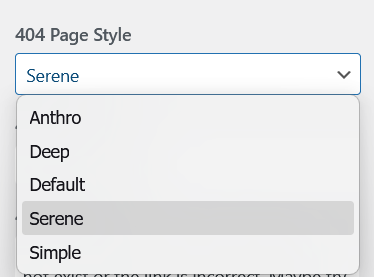
- Open Layouts → 404 Page Style.
- Click 404 Page Style.
- Select a layout from the dropdown.
- Click Publish when satisfied.
The 5 Layouts
See the full 404 page layouts comparison for screenshots and details on each design.
Default
A split layout: content on the left, user-set background image on the right.
Simple
No image. An enormous “404” numeral centered at the top, with the title, message, links, and button centered below.
Deep
A full-viewport background image. Ships with an island and submarine illustration; replaceable with your own image. Content centered over the image.
Serene
A full-viewport user-set background image with a large outlined “404” and left-aligned content overlaid.
Anthro
A fixed mammoth illustration on the left with navigation links, title, message, and button on the right.
Customizing the 404 Page Content
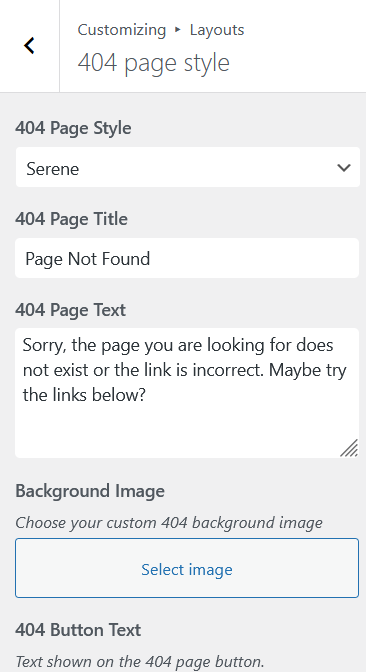
All 5 layouts support the same content customization options under Layouts → 404 Page Style:
Title
Set a custom heading for the 404 page. Default: “Page Not Found”.
Body Text
Set a custom message explaining what happened and what the visitor can do. Multi-line text is supported.
CTA Button
Add a button with a custom label and URL, typically linking back to the homepage or a popular category.
Background Image
Default, Serene, and Deep all support a user-set background image. Deep ships with a default illustration that can be replaced. Anthro uses a fixed mammoth illustration. Simple uses no background image. Upload an image under Layouts → 404 Page Style → Background Image to set it.
Navigation Menu
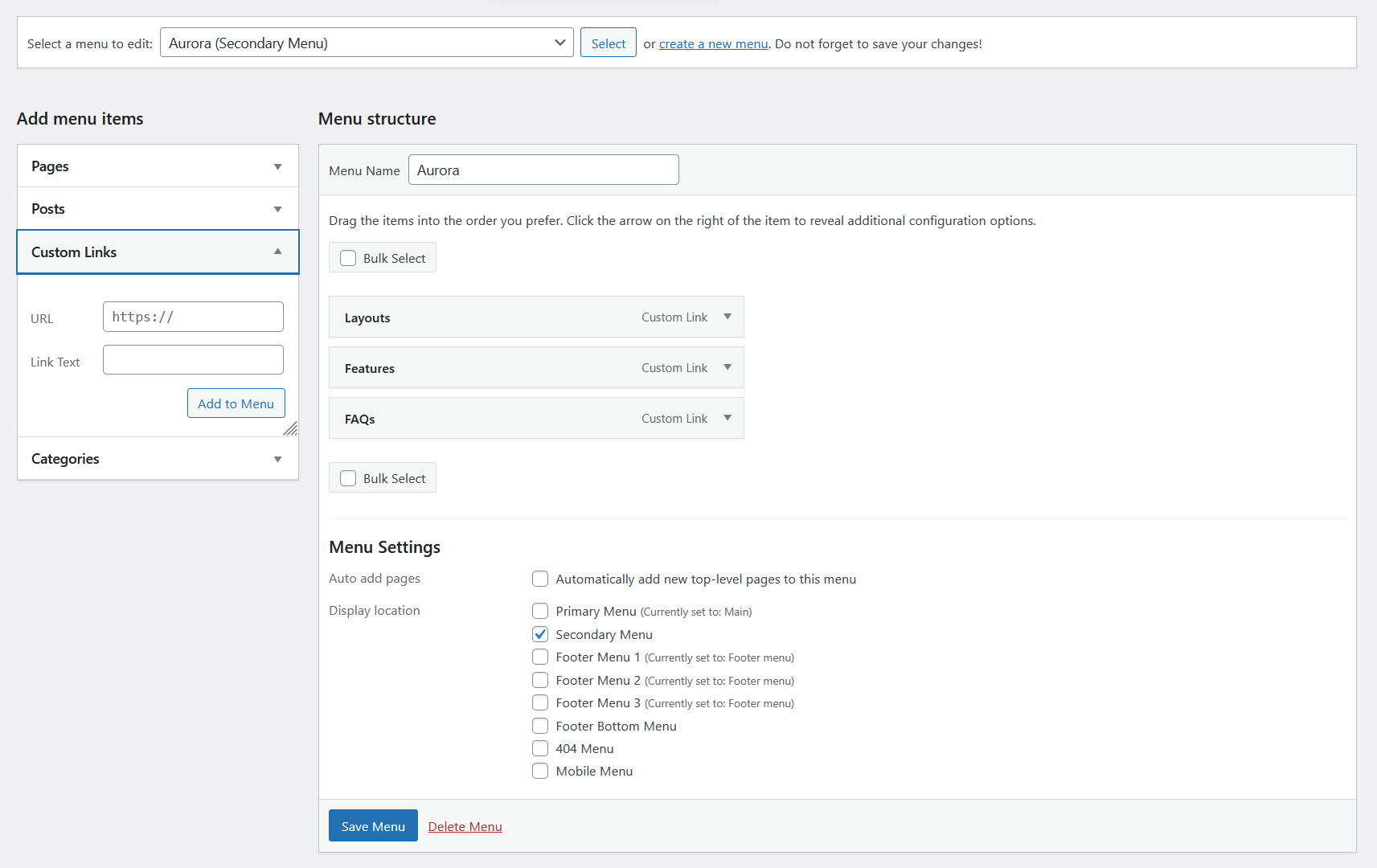
Assign a menu to the 404 Menu location under Appearance → Menus. Aurora displays this menu on the 404 page to give visitors useful links to navigate to.