

Aurora is fully translation-ready. All front-end strings are wrapped in WordPress’s standard translation functions and a POT template file is included. If Aurora does not ship a translation for your language, you can create one yourself without touching any theme code.
What You Need
- Poedit — a free translation editor. Download it from poedit.net.
- The
aurora.potfile from thelanguages/folder inside the Aurora theme directory. This is the master template containing every translatable string. - FTP access or a file manager to upload the finished files to your server.
Creating a Translation with Poedit
- Open Poedit and choose Create new translation.
- Select the
aurora.potfile when prompted for the source. - Choose your target language from the list.
- Translate each string in the editor. The source string (English) appears on the left; enter your translation on the right.
- Save the file. Poedit will create two files: a
.posource file and a compiled.mobinary.
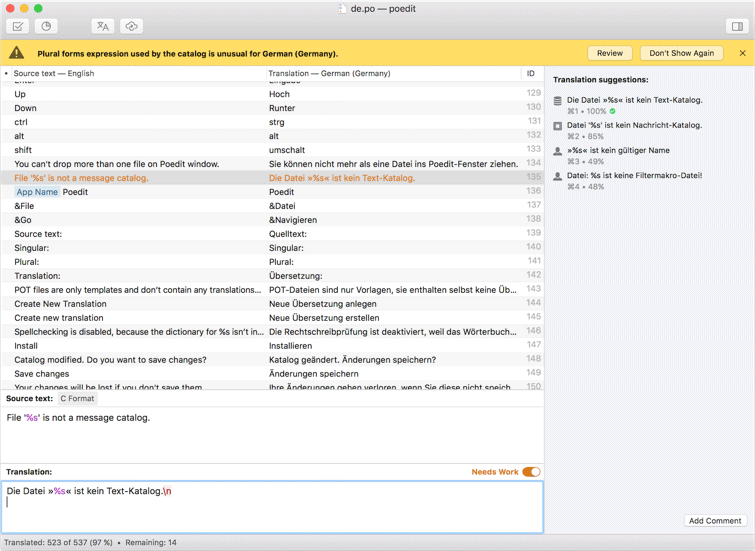
Name the files using WordPress locale codes. For example, pt_BR.po and pt_BR.mo for Brazilian Portuguese. You can find your locale code in Settings → General → Site Language in WP Admin.
Installing the Translation Files
Upload both the .po and .mo files to the languages/ folder inside the Aurora theme directory:
wp-content/themes/aurora-pro/languages/pt_BR.po
wp-content/themes/aurora-pro/languages/pt_BR.mo
WordPress loads the .mo file automatically when the site language matches. No additional configuration is needed.
Keeping Translations Safe During Updates
Translation files placed inside the theme’s languages/ folder will be overwritten when the theme updates, unless the update includes new translation files for your locale. To protect a custom translation, store it in a child theme instead. Create a languages/ folder inside your child theme and place the files there. WordPress checks child theme language directories first.

If you are building a site in one of the languages Aurora already ships, the translation files are included automatically. No Poedit work required. Just set your site language in Settings → General.